
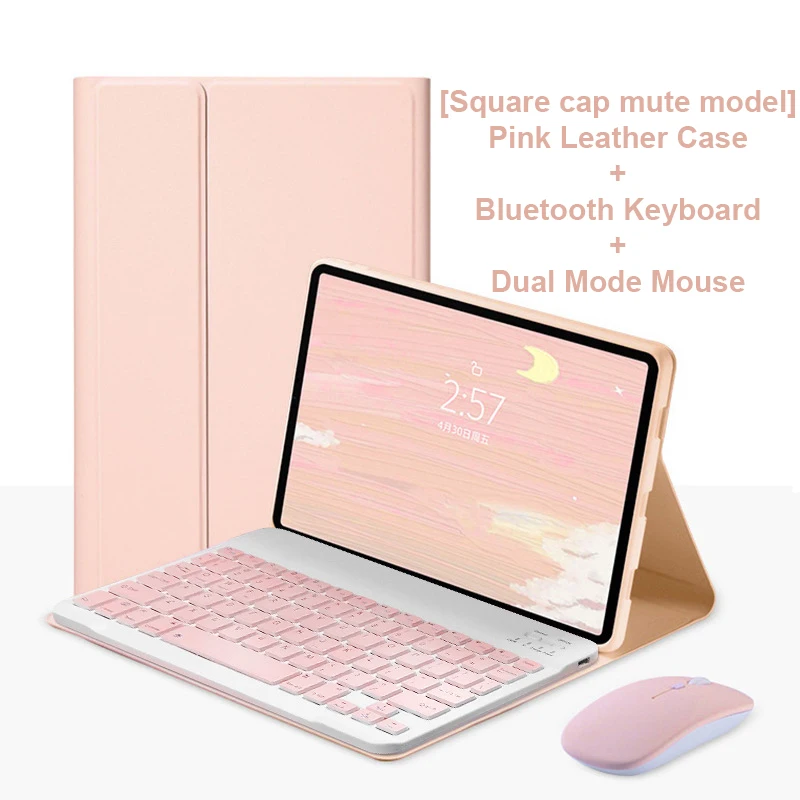

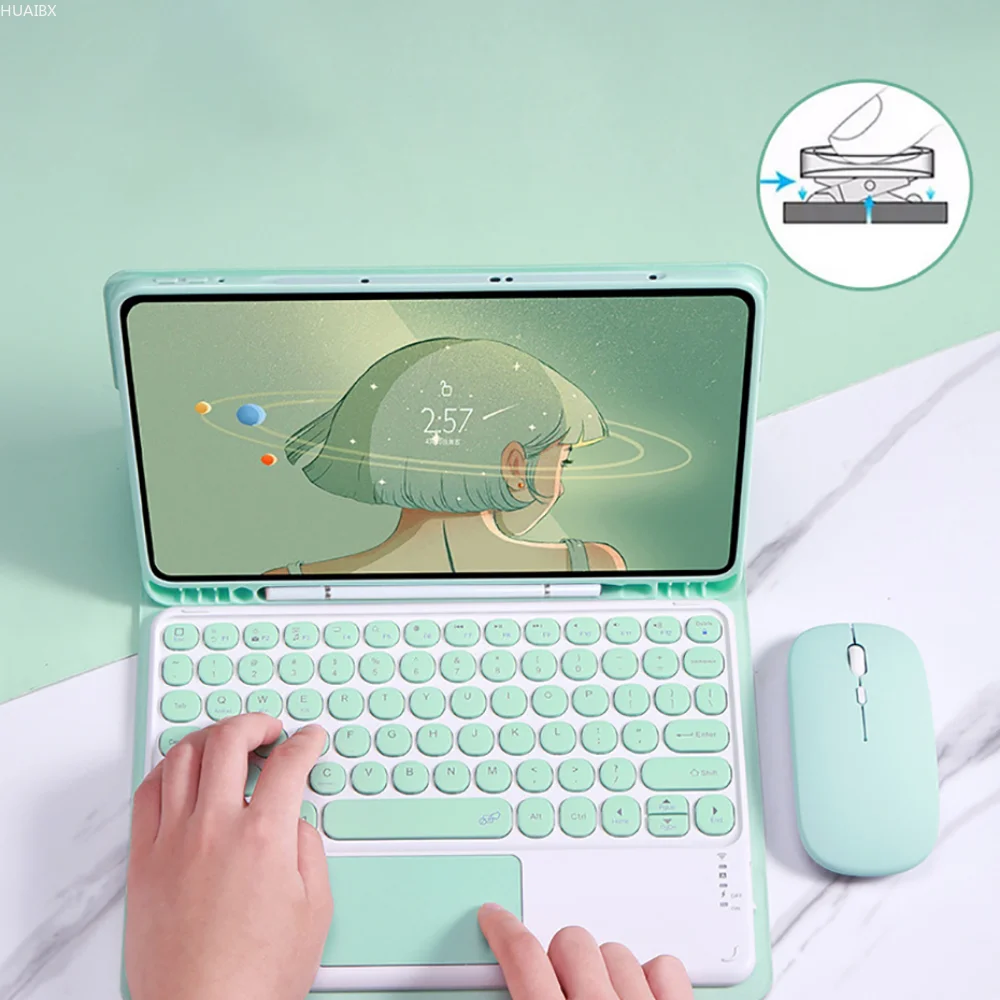
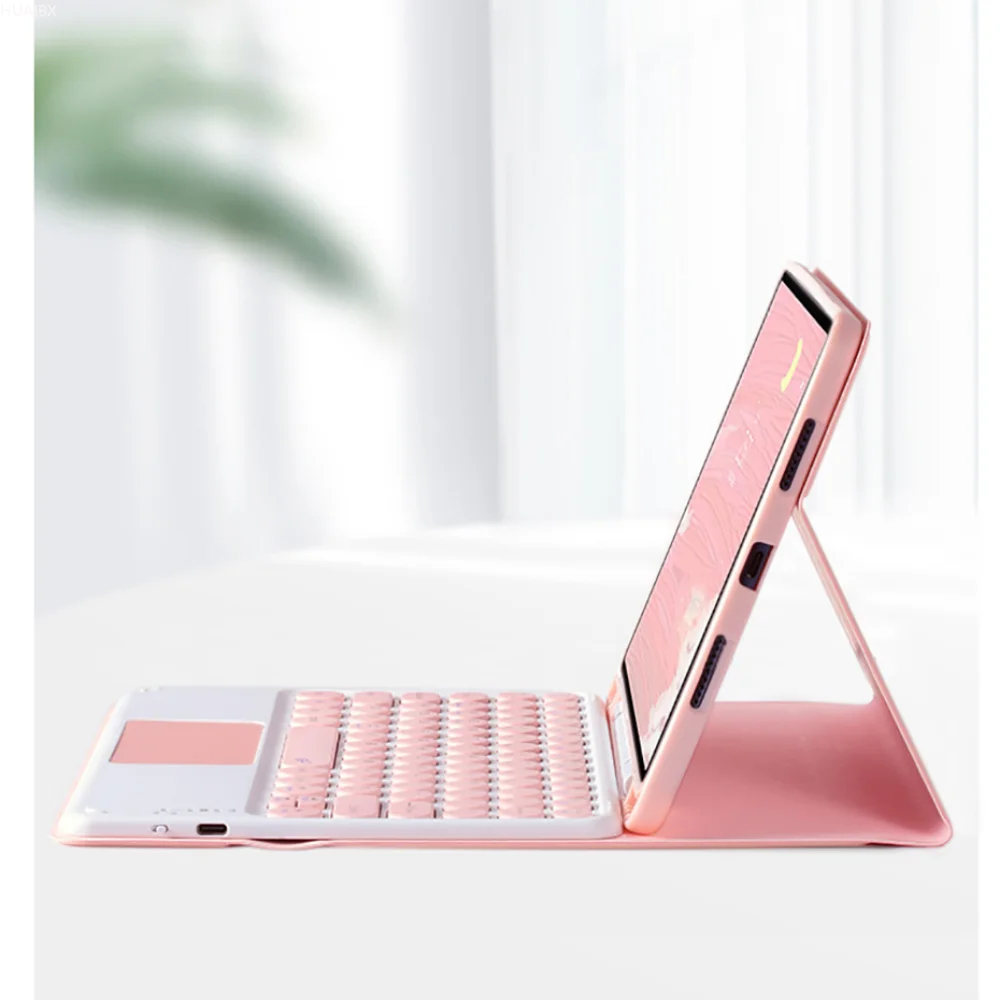

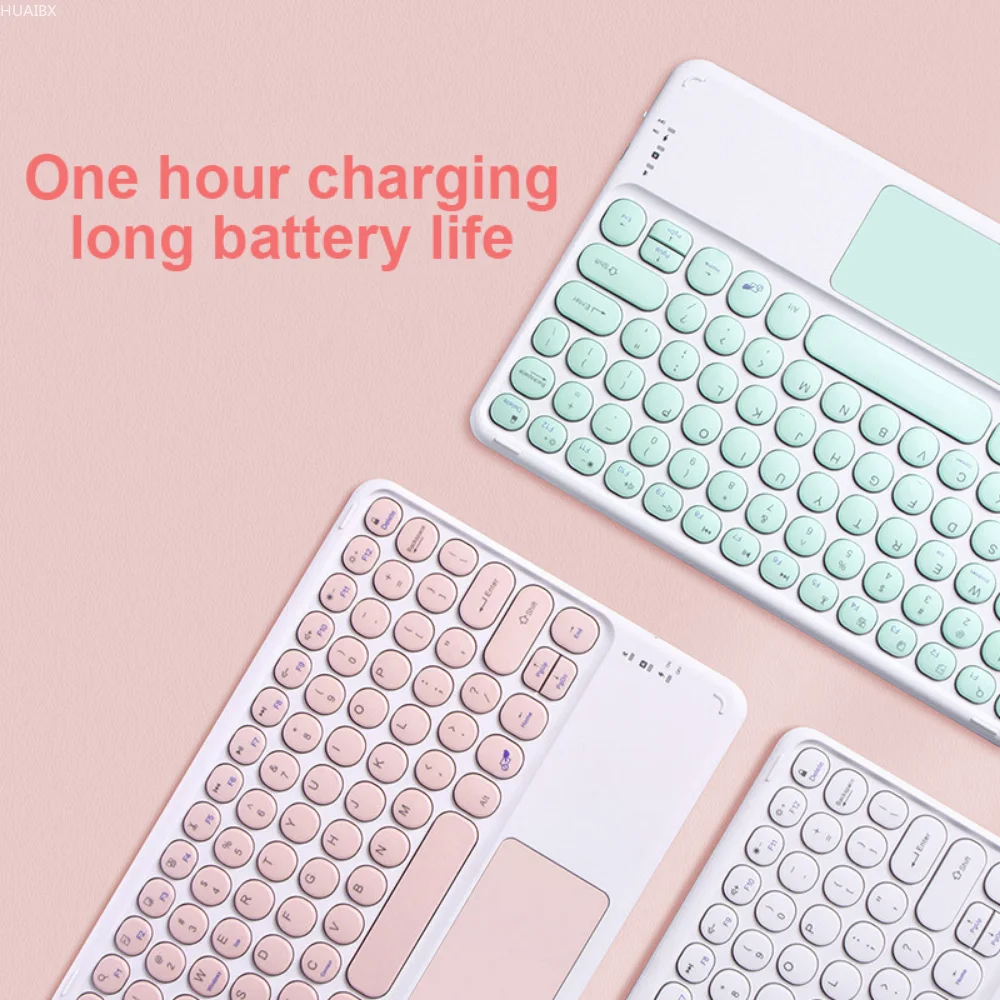


Keyboard Case for Samsung Galaxy Tablets
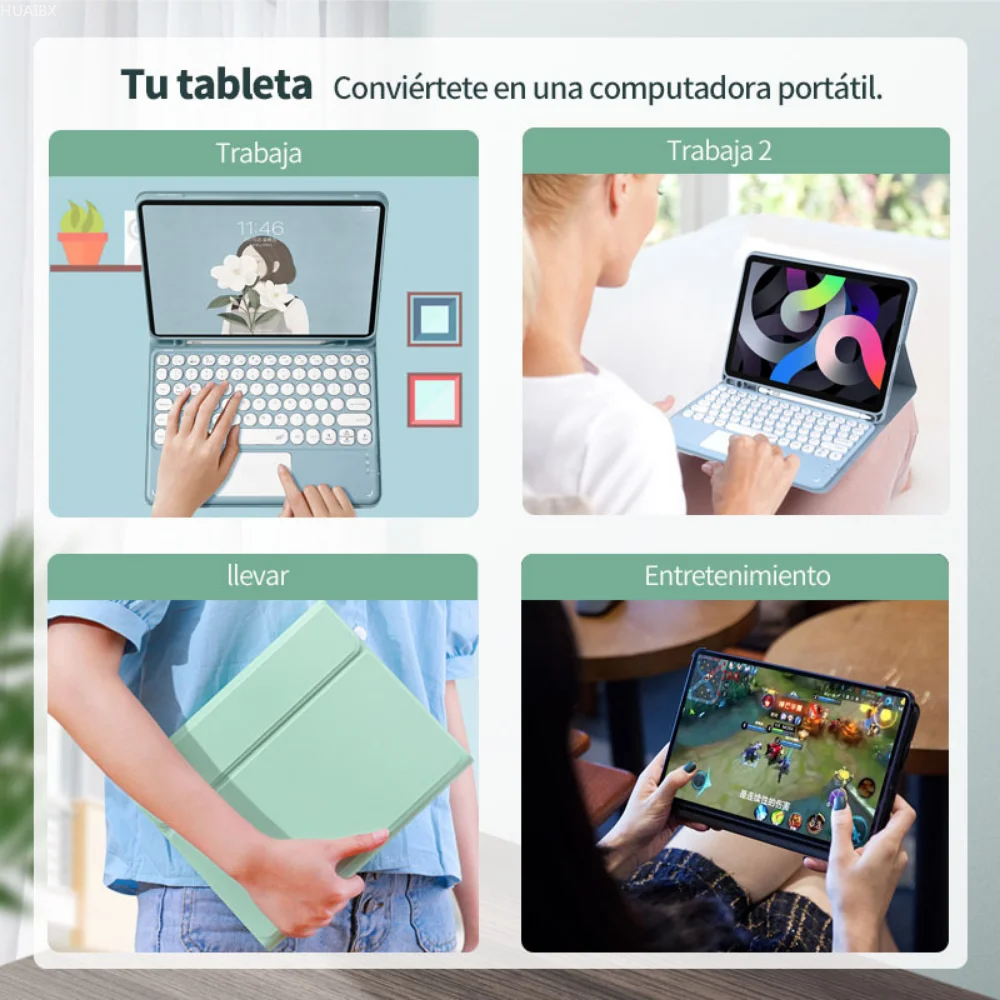
🪞 Enhance your tablet experience with our versatile keyboard case designed to fit a range of Samsung Galaxy Tab models. This accessory is perfect for transforming your tablet into a portable workstation, making typing easier and more efficient. It offers a sleek and functional design tailored to improve your productivity on the go.
Compatibility
🎯 Our keyboard case is tailored for various Samsung Galaxy Tab models. Please verify your specific model before purchasing to ensure a perfect fit:
Samsung Galaxy Tab A7 Lite (8.7 inch): SM-T220, SM-T225
Samsung Galaxy Tab A9 (8.7 inch): SM-X110, SM-X115, SM-X117
Samsung Galaxy Tab A7 (10.4 inch): SM-T500, SM-T505
Samsung Galaxy Tab A8 (10.5 inch): SM-X200, SM-X205
Samsung Galaxy Tab A9+ (11 inch): SM-X210N, SM-X216B
Samsung Galaxy Tab S6 Lite (10.4 inch): SM-P610, P613, P615, P619
Samsung Galaxy Tab S7 (11 inch): M-T870, T875, T878U
Samsung Galaxy Tab S8 (11 inch): M-X700N, X706N
Samsung Galaxy Tab S7 Plus / S7 FE (12.4 inch): SM-T970, SM-T975, SM-T733, SM-T735
Samsung Galaxy Tab S8 Plus (12.4 inch): SM-X800, SM-X806
Samsung Galaxy Tab S8 Ultra (14.6 inch): X900, X906
Samsung Galaxy Tab S9 (11 inch): SM-X710, X716, X718
Samsung Galaxy Tab S9 Plus (12.4 inch): SM-X810, X816, X818
Samsung Galaxy Tab S9 Ultra (14.6 inch): SM-X910, X916B, X918U
Samsung Galaxy Tab S9 FE (10.9 inch): SM-X510, X516B
Samsung Galaxy Tab S9 FE Plus (12.4 inch): SM-X610, X616B
Keyboard Options
🎯 Choose from the following keyboard sizes to ensure the best fit and functionality:
8 inch Keyboard: Ideal for Tab A7 Lite / Tab A9 (8.7 inch)
10 inch Keyboard: Suitable for Galaxy Tab A7, A8, A9+, S6 Lite, S7, S8, S9, and S9 FE
12 inch Keyboard: Perfect for Tab S7 FE, S7, S8, S9, S9 FE Plus, S8, and S9 Ultra
10 inch Touch Keyboard: Not suitable for Tab A7 Lite / Tab A9, but compatible with other models
🔵 Bluetooth Connectivity
🔵 Easily connect your keyboard and mouse via Bluetooth for a seamless experience:
🔵
For Mouse: Connect by pushing the switch to the "Bluetooth" icon and finding the "Mouse" in the device’s Bluetooth list.
Normal Keyboard: Turn it on, press "Connect", and select "Keyboard" in the device's Bluetooth list.
Touchpad Keyboard: Turn it on, press Fn+C, and find "Keyboard" in the Bluetooth settings.
🧩 Functionality and Customization
🧩 Customize your typing experience with system-specific commands:
Non-touch Keyboard: Switch systems by pressing Fn+Q (Android), Fn+W (Windows), Fn+E (iOS).
Touchable Keyboard: Switch systems by pressing Fn+A (Android), Fn+S (Windows), Fn+D (iOS).
Frequently Asked Questions
🔘
Q: What to do if connecting the mouse for the first time?
A: Press the left button, right button, and scroll wheel simultaneously for 3-5 seconds.
Q: Are the scroll directions the same for USB and Bluetooth connections?
A: No, USB connection scrolls similarly to a computer mouse, while Bluetooth scrolls in the opposite direction.
Q: How to switch between different systems?
A: Use Fn+Q for Android, Fn+W for Windows, and Fn+E for iOS. Always switch systems before connecting the tablet.
Q: How to reset if the keyboard letters are messy?
A: Check if the device's keyboard language is set to English, disconnect and reconnect Bluetooth, and press Fn+E for iOS. Reset by pressing L, S, Z simultaneously.
Q: How to configure the keyboard for different languages?
A: Go to "Settings" > "System" > "Language & input" > "Add New Keyboard" on your device.
Q: How to change the mouse scroll wheel direction?
A: Go to "General" > "Trackpad & Mouse" > disable "Natural Scrolling".