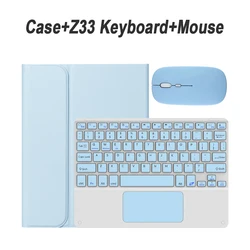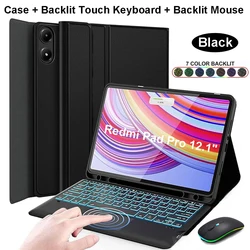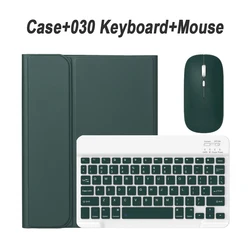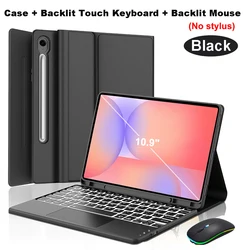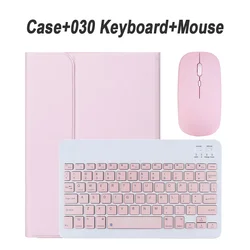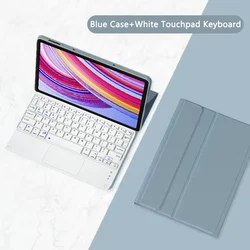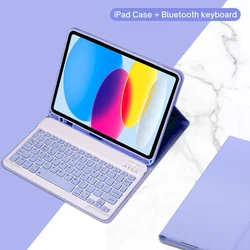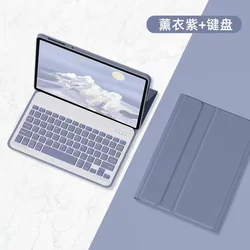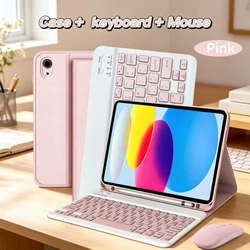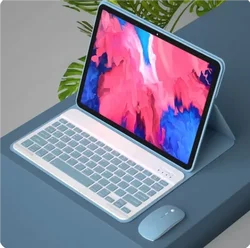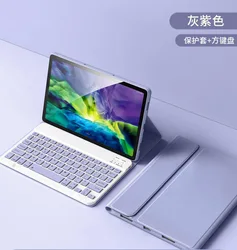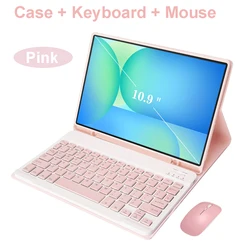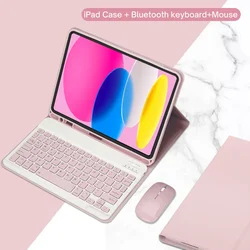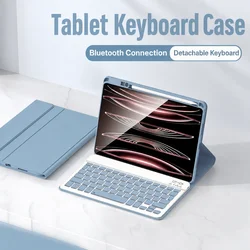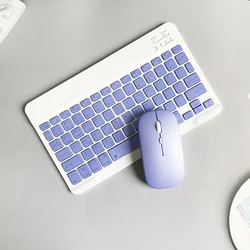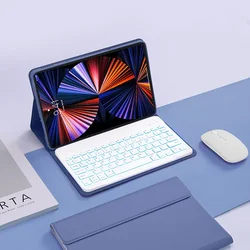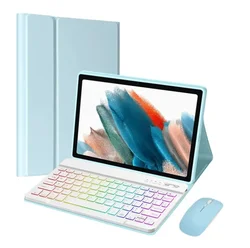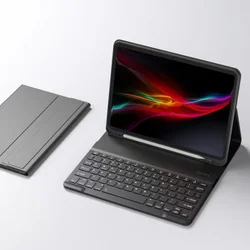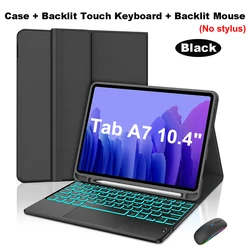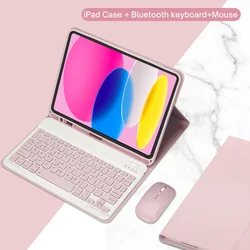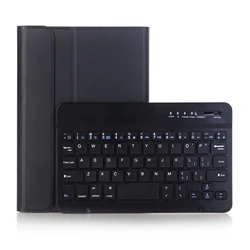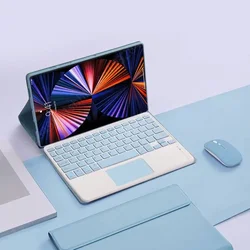
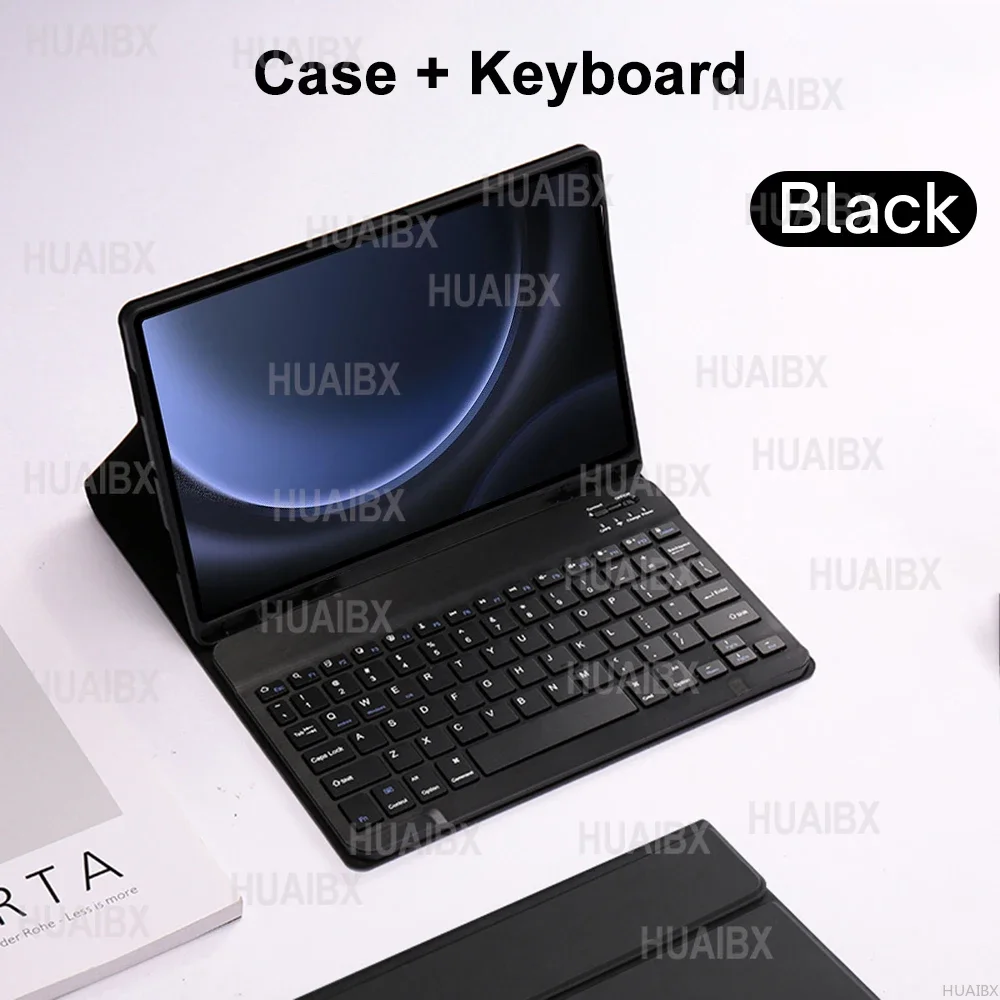


Versatile Case with Detachable Keyboard for Samsung Galaxy Tab S9 FE 10.9 Inch
Designed specifically for Samsung Tab S9 FE SM-X510/X516B 10.9 inch Tablet, this case comes with a detachable keyboard to enhance your tablet experience. Please verify your tablet model before making a purchase.
Keyboard Options
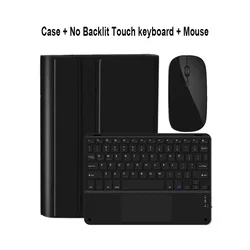
English Keyboard: Only English letters are printed on the keys.
🔧 Multilingual Version Keyboard: Features both English letters and engraved letters for additional languages.
Keyboard Sizes
No Touchpad Keyboard: Dimensions are 247*150*6mm
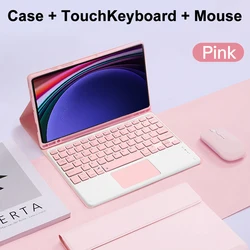
Touchpad Keyboard: Dimensions are 250*170*6mm
📦 Please note, the digital tablet and stylus are not included in the package. Color variations may occur; refer to the actual product for accurate color.
Connecting Keyboard & Mouse
1. Connect the mouse first, then connect the keyboard.
🔵 2. Mouse: Push the switch to the "Bluetooth" icon, then find "Mouse" in your device's Bluetooth list.
🔵 3. For Normal Keyboard: Turn the switch in the upper right corner to "ON", press "Connect", and find "Keyboard" in your device's Bluetooth list.
🔵 4. For Touchpad Keyboard: Turn on the keyboard, press Fn+C, then find "Keyboard" in your device's Bluetooth list.
FAQ
Q: How should I connect the mouse for the first time?
🔘 A: Hold down the left button, right button, and scroll wheel simultaneously for about 3-5 seconds.
🔵 Q: Is the scroll direction the same for USB and Bluetooth connections?
🔵 A: No, it differs. With the USB connector, the scroll wheel moves in the same direction as a computer mouse. For Bluetooth connections, it’s the opposite.
Q: How do I switch between different operating systems?
A: Use Fn+Q for Android, Fn+W for Windows, and Fn+E for iOS. Always switch the system before connecting the tablet.
Q: Why are the keyboard letters inputting incorrectly?
🔘 A: Follow these steps:
a. Ensure the keyboard language setting on the device is English.
b. Disconnect the Bluetooth, click "Ignore this device", then reconnect.
c. Press the L, S, and Z buttons simultaneously to reset the keyboard.
Q: How can I configure the input method for a different language keyboard?
🧰 A: On a Samsung tablet, go to "Settings" > "System" > "Language & Input" > "Add New Keyboard". For other systems, follow the system settings prompts accordingly.
Q: How can I change the mouse scroll direction?
A: Once the mouse is connected, go to "General" > "Trackpad & Mouse" > toggle off "Natural Scrolling".
If this item arrives after the delivery date given at checkout, you will be emailed a $7.00 credit voucher to use on your next order